MRA E-INVOICING ON YOUR PHONE
Your invoices, wherever you work.
Serve your customers and create MRA e-invoices from your phone. For shops, tabagies, restaurants, quincailleries and businesses working away from a desk in Mauritius.
MRA e-invoicing in Mauritius, on your phone
At the counter of your shop or tabagie, in a restaurant, or while serving someone in your quincaillerie, you can prepare an invoice without a computer. Enter the customer and the items sold, check the total and send the invoice to MRA. An internet connection is required.
Give your customer their invoice
- Show it on your phone: once the invoice is validated, open Show to customer. Your customer can take a clear photo of the invoice and its MRA QR code, or scan the code to verify the document.
- Print a paper copy: connect a small, compatible Bluetooth receipt printer and print the invoice at the counter.
- Send it on WhatsApp: choose Share PDF, select WhatsApp and send the invoice to your customer. You can also share it by email.
A printer is optional. You can start by showing invoices on screen or sharing their PDFs, then add a compatible printer when you need paper copies.
From customer to invoice
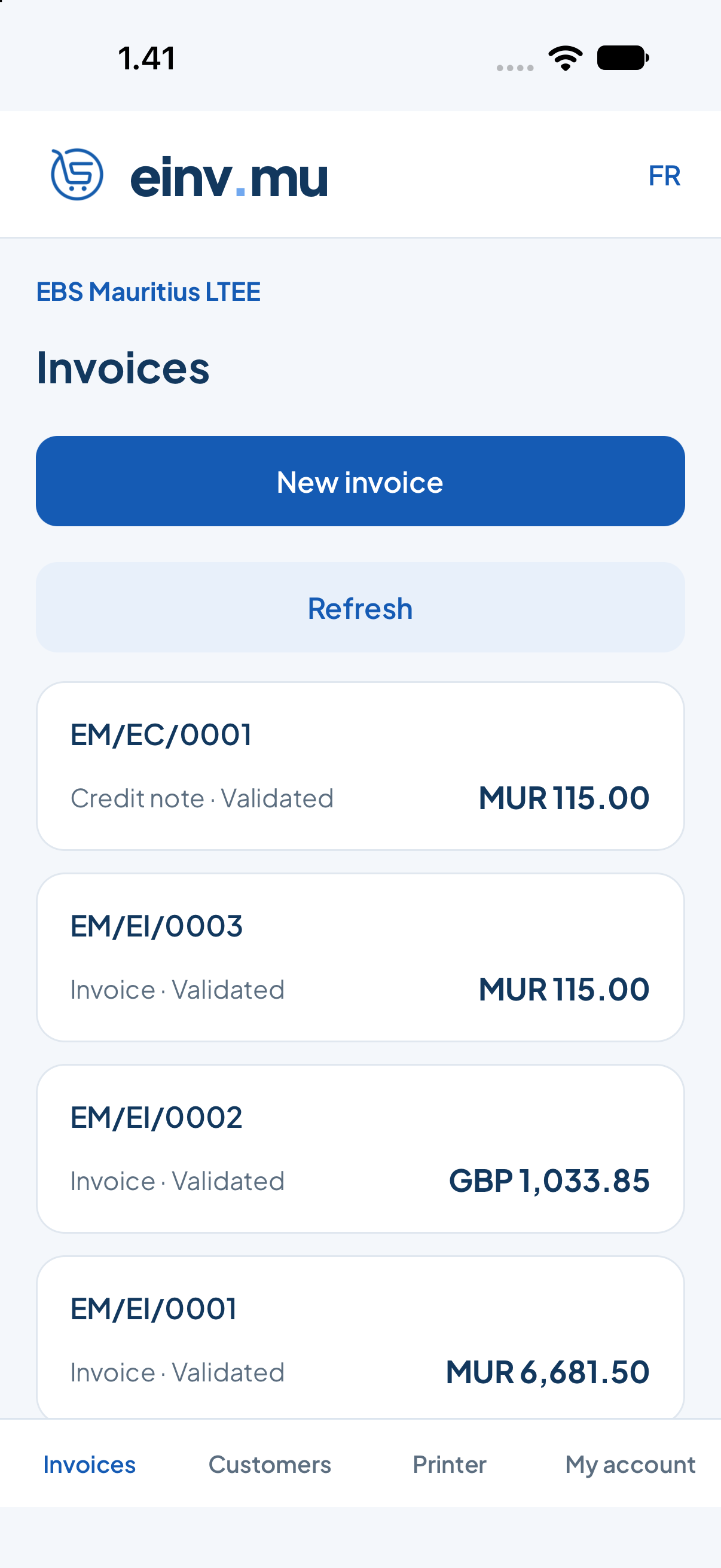
Create customers, prepare invoices and credit notes, then send them to MRA from the same business account you use on the website. Once validated, open the document to share its PDF, print it or show it to your customer.
Shared PDFs use the document reference, such as EM-EI-0003.pdf. The framed MRA QR code includes a verification link: tap it to open the document’s verification page.
Quick access on your phone
Under My account, enable Face ID or fingerprint unlock on a supported phone. You can also manage passkeys, your account and cancellation from this screen.
Register and get started from your phone
- Open einv.mu registration in your phone’s web browser and create your account.
- Follow our step-by-step guide to register your business with MRA, enter your details, complete the tests and activate your business. Open the MRA portal in your browser when the guide asks you to.
- Complete your subscription payment using the instructions on the website and wait for activation.
- Download the Android app and sign in with the same einv.mu account. You can then add customers, create invoices and share or print validated documents from your phone.
You complete registration and MRA onboarding yourself. An active einv.mu subscription is required for business invoicing.
Your whole team, connected from anywhere
Everyone in your company can use the einv.mu app on their own phone, with their own login. Customers, invoices and credit notes created on one phone are available to the other users in the same company.
You can also sign in at app.einv.mu on a computer to manage your company, review documents and handle administrative tasks from anywhere. Your team can serve customers on their phones while you manage the business online.
Changing phones? Sign in with your own login and choose your company to find your saved information. Historical invoices and credit notes are kept on the platform for a maximum of six months.
Share an invoice without a printer
- Open a validated invoice or credit note.
- Choose Share PDF.
- Select WhatsApp, email or another installed app in your phone’s sharing menu.
- Check the recipient before sending. You can also choose Show to customer to display the document and MRA QR code on your phone.
Print on an office printer
Open a validated document and choose Print PDF. Select an available printer, paper size and copies in your phone’s system print dialog. On iPhone, use an AirPrint-compatible printer. On Android, use a printer supported by your installed print service. Your phone and a network printer usually need to be on the same network.
Choose a receipt printer
Look for an ESC/POS receipt printer with 58mm or 80mm paper. ESC/POS describes the printing commands; it does not guarantee that every Bluetooth printer will connect to every phone.
| Phone | Connection to check | Before buying |
|---|---|---|
| Android | Bluetooth Classic receipt printing | Ask the supplier to demonstrate pairing and printing with your phone. |
| iPhone | Compatible Bluetooth Low Energy (BLE) receipt printing | A Bluetooth label alone is not enough. Confirm the exact model and test it with the app. |
USB-only and network-only printers cannot connect through this app’s Bluetooth printer screen. A printer requiring its manufacturer’s own app may need a different integration.
Our recommended receipt printer supplier in Mauritius
We recommend IT Works Ltd for affordable, reliable, tested receipt printers. Tell them whether you use Android or iPhone so they can recommend a tested model for your phone and confirm the correct Bluetooth connection.
Call +230 5253 0331 or email [email protected].
Connect and test your printer
- Charge or plug in the printer, load the correct paper and switch it on.
- On Android, pair it in your phone’s Bluetooth settings first. On iPhone, use a compatible BLE model and select it from within the app.
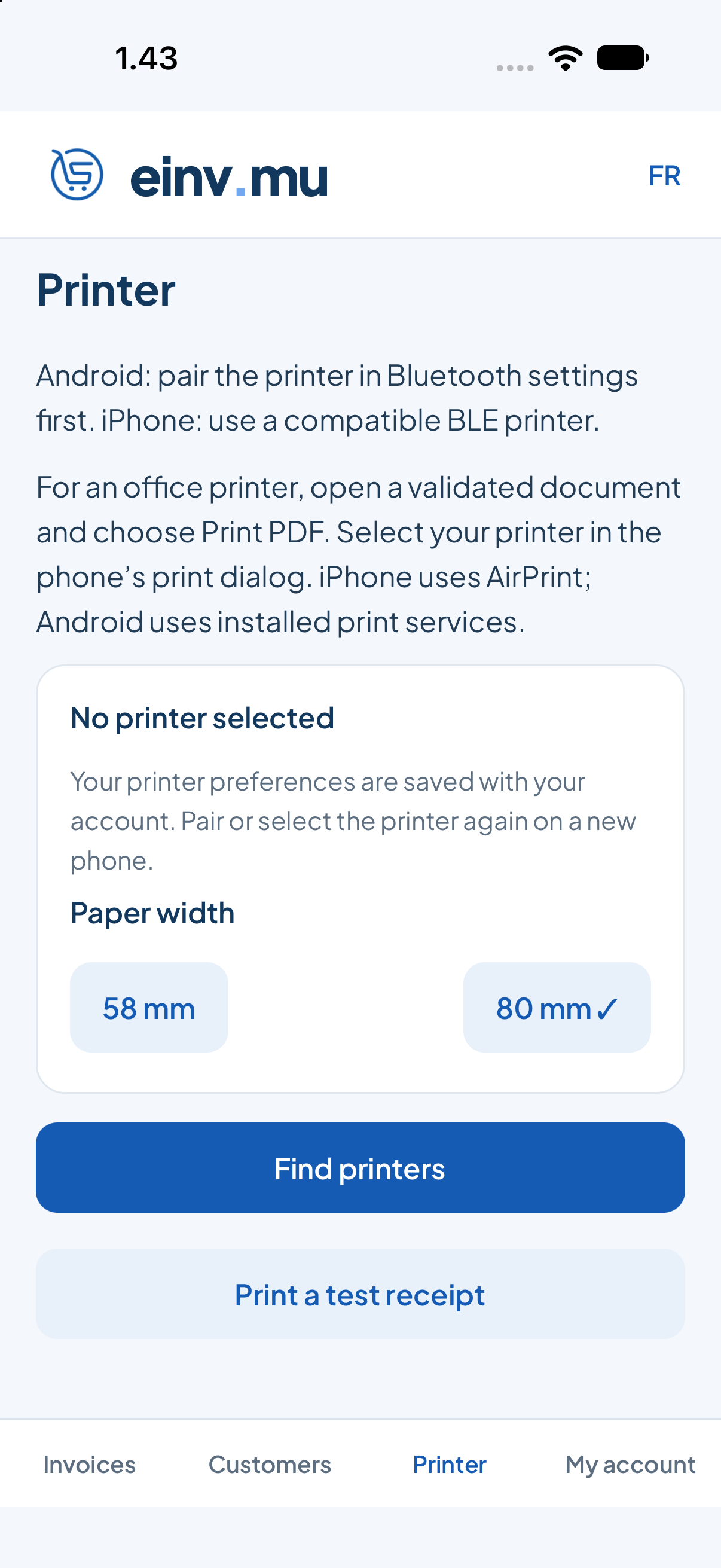
- Open Printer in einv.mu. Choose 58 mm or 80 mm to match the paper roll.
- Choose Find printers, allow the Bluetooth permission and select your printer.
- Choose Print a test receipt. Check that the text is clear and fits the paper.
- Open a validated document and choose Print receipt. Check the printed MRA QR code with another phone before using the printer for customers.
Changing phones
Your information and settings are saved with your account. If you change your phone, simply sign in to find them again. Reconnect your Bluetooth printer on the new phone.
If printing does not work
- Check power, paper and Bluetooth permission.
- Disconnect the printer from another phone if it is already in use.
- Check the selected printer and paper width, then print a test receipt.
- If a print was interrupted, check the paper before printing again. Reprint the existing document; do not create another invoice just to get another copy.
- You can still share the PDF while checking your printer.
For an einv.mu system issue, email [email protected] with your phone model, printer model and the message shown. For assisted setup and service, visit EBS Mauritius.