ONE STEP AT A TIME
Your MRA setup, from start to finish.
Follow the steps here while you complete your setup in einv.mu and the MRA portal. Open the guide at any step and pick up where you left off.
Self-service setup. Technical support by email only.
GUIDE STEP 1 / 14 In einv.mu
Your account
Create your account before starting the company setup.
- Open einv.mu and choose Get started. Enter your own name and email address, then choose a password.
- Open the verification email and follow its link. Sign in to continue.
- Keep this guide open. The buttons below open the app or MRA in another tab.
| Field on the screen | What to enter or select |
|---|---|
| Full name | Your own first and last name. |
| Email address | An email address you can open now to receive the verification link. |
| Password | Create your own einv.mu password with at least 12 characters. |
| Confirm password | Enter the same einv.mu password again. |
| Self-service acknowledgement | Read it and tick it if you agree to complete the setup yourself. |
Your email is verified and you can open the company setup.
Need a hand with this step?
Already registered? Sign in with your existing account.
Opens in another tab. Keep this guide open.
Link to this stepGUIDE STEP 2 / 14 In einv.mu · Company
Your company
Use the details on your official company documents.
- Complete each field using the table below. Use your own company documents.
- Check that the legal name, BRN and 8-digit TAN are correct.
- Read the self-service acknowledgement, tick it if you agree, then choose Save and continue.
| Field on the screen | What to enter or select |
|---|---|
| Company name | Your full legal company name from your official documents. |
| VAT status | VAT registered if your company is registered for VAT; otherwise not VAT registered. |
| BRN | Your own Business Registration Number. |
| TAN / VAT number | Your company’s 8-digit TAN, without VAT or spaces. |
| Address | Your company’s full business address. |
| Telephone | Your company’s contact telephone number. |
| Company email address | The email address your company uses for business. |
Your company details are saved.
Need a hand with this step?
You complete the setup yourself. Email support covers technical problems only.
Opens in another tab. Keep this guide open.
Link to this stepGUIDE STEP 3 / 14 On the MRA website
MRA registration
Open the Economic Operator registration page for your business.
- Enter your company’s Tax Account Number (TAN).
- Use the password you use for filing returns on MRA e-Services.
- Complete the on-screen security check and choose Sign In. Follow the operator registration prompts.
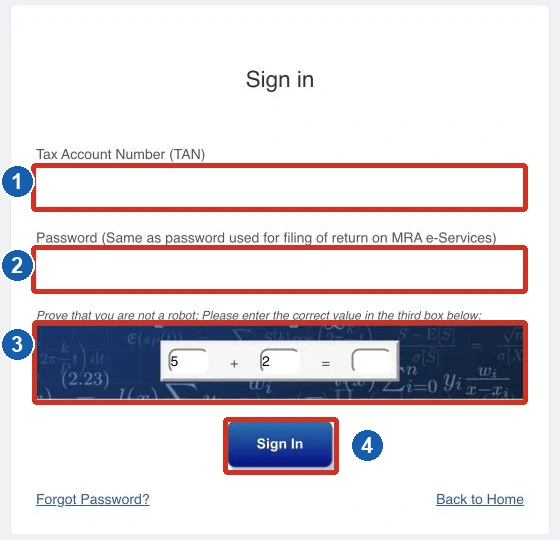
- 1Company TAN
- 2MRA e-Services password
- 3Security check
- 4Sign In
MRA Economic Operator sign-in screen. Checked against the public portal on 20 October 2026. Select the image to enlarge it.
You can access your company’s Economic Operator registration.
Need a hand with this step?
For missing MRA access or a registration problem, contact MRA on +230 207 6020.
Opens in another tab. Keep this guide open.
Link to this stepGUIDE STEP 4 / 14 On the MRA website
Your E-Invoicing Information
Complete your business and branch details in Your E Invoicing Information.
- In the company/customer information section, enter your own legal company name, BRN, TAN, address and contact details wherever requested. Copy the same details you used in the Company step of einv.mu.
- In the branch information section, enter your branch’s name and full address, then select its region. Use the branch where this invoicing system will be registered.
- Review the information, correct any mistakes and save or continue as shown on the MRA page.
Your business, contact and branch information is complete and correct.
Need a hand with this step?
If you are unsure which company or branch details to use, contact MRA on +230 207 6020.
Opens in another tab. Keep this guide open.
Link to this stepGUIDE STEP 5 / 14 On the MRA website
Your E-Invoicing Passwords
In E Invoicing Passwords, set your transmission password and keep your Test User sign-in details.
- Set a transmission password that meets the requirements shown by MRA. Confirm it if the form asks you to.
- NOTE IT securely, preferably in a password manager. You will enter this exact transmission password in einv.mu later. Once set, do not change it when connecting einv.mu.
- In Test User Name, enter your own BRN followed by TEST, without spaces. Example: C2222222TEST for BRN C2222222. Choose a separate Test User Password and save both details securely, then save or submit the MRA form.
| Field on the screen | What to enter or select |
|---|---|
| Transmission password | Create your own password following the MRA requirements. Save it securely and reuse it unchanged in einv.mu. |
| Confirm transmission password (if shown) | Enter exactly the same transmission password again. |
| Test User Name | Your own BRN + TEST, with no spaces. Example only: C2222222TEST. |
| Test User Password | Create a separate password for signing in to the MRA test portal. Save it with your Test User Name. |
| Confirm Test User Password (if shown) | Enter exactly the same Test User Password again. |
NOTE YOUR TRANSMISSION PASSWORD and keep it safe. You will need the same password in einv.mu.
You have securely saved your transmission password, Test User Name and Test User Password.
Need a hand with this step?
The transmission password connects einv.mu to MRA. The Test User Name and Password let you sign in to the MRA test portal. Never send these passwords by email.
Opens in another tab. Keep this guide open.
Link to this stepGUIDE STEP 6 / 14 On the MRA website
Sign in as Test User
Open the MRA sign-in page below. The four numbered boxes show exactly where to enter your details.
MRA sign-in URLhttps://vfiscportal.mra.mu/einvoice-portal/login
- Username: enter the Test User Name saved during registration. If you followed this guide, this is your own BRN followed by TEST, without spaces. Example: BRN C2222222 becomes C2222222TEST. If you already registered another username, use that saved username.
- Password: enter your Test User Password. This is the password saved with your Test User Name, not your transmission password or your einv.mu password.
- Complete the security check in the third box on your MRA page. The values change; use the check displayed on your own screen.
- Choose Sign In. If MRA asks for an OTP, select Next in this guide and follow the OTP instructions.
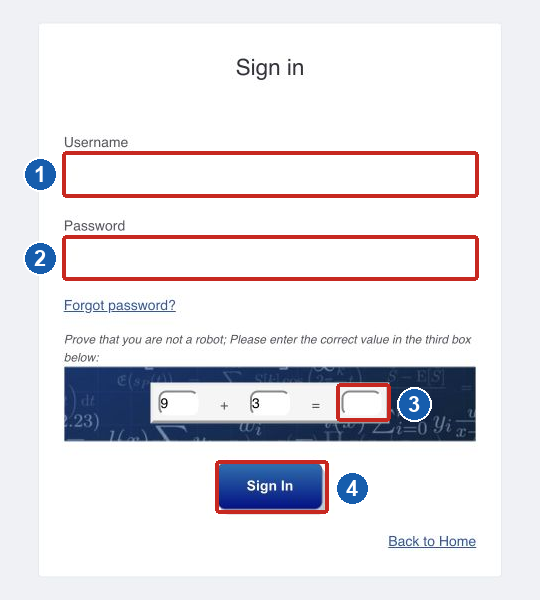
- 1Username: your saved Test User Name
- 2Password: your Test User Password
- 3Complete the security check here
- 4Choose Sign In
Official MRA Test / Live User sign-in page, captured 20 October 2026. The fields are intentionally empty. The security check changes each time. Select the image to enlarge it.
You are signed in, or MRA is asking you to validate an OTP.
Need a hand with this step?
If the password is rejected, check that you used your Test User Password. Use Forgot password? on this same MRA page if you cannot find it. For an MRA access problem, call +230 207 6020.
Opens in another tab. Keep this guide open.
Link to this stepGUIDE STEP 7 / 14 On the MRA website
Validate the OTP
When MRA asks for an OTP, use the code sent to the registered contact.
- Check that you can receive the code on the contact shown by MRA.
- Enter the code in Enter OTP, then choose Validate OTP.
- If no code arrives after a few minutes, use Regenerate OTP if offered. Use the latest code.
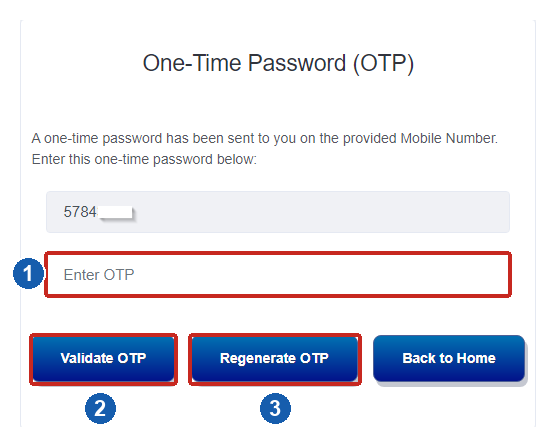
- 1Enter the latest OTP
- 2Validate the code
- 3Request a new code if needed
MRA User Guidelines (2023), printed page 10. Example from the supplied portal manual; the current screen may differ. Select the image to enlarge it.
MRA confirms that the OTP is validated. Continue to the portal.
Need a hand with this step?
An OTP is a one-time code. Enter it on MRA’s page, not in the transmission-password field in einv.mu.
Opens in another tab. Keep this guide open.
Link to this stepGUIDE STEP 8 / 14 On the MRA website
Register your EBS
Register einv.mu using the EBS details below. Copy the fixed values exactly; select your own region and branch.
- Open Register/Update EBS and choose Add New Row. Use the new, empty row.
- Fill the fields using the table below. Choose Invoicing Software first. Scroll the EBS table horizontally to find Operating System, System, Status, Region and Branch Description.
- Choose Save EBS Details. MRA will generate your EBS MRA ID. Copy the complete ID and keep it for the Connect to MRA step.
| Field on the screen | What to enter or select |
|---|---|
| Type | Invoicing Software |
| Name identifying EBS | EBS Mauritius Online |
| Version | 1 |
| Operating System | SaaS |
| System | EBSMauritius |
| Status | Active |
| Region | Select your company’s region, as saved in your MRA registration. |
| Branch Description | Select your own branch for that region. |
| Serial Number / Model | Leave empty for Invoicing Software; the MRA manual requires these for Point of Sales / Electronic Cash Register. |
| EBS MRA ID | Leave empty when adding the row. Copy the ID generated by MRA after saving. |
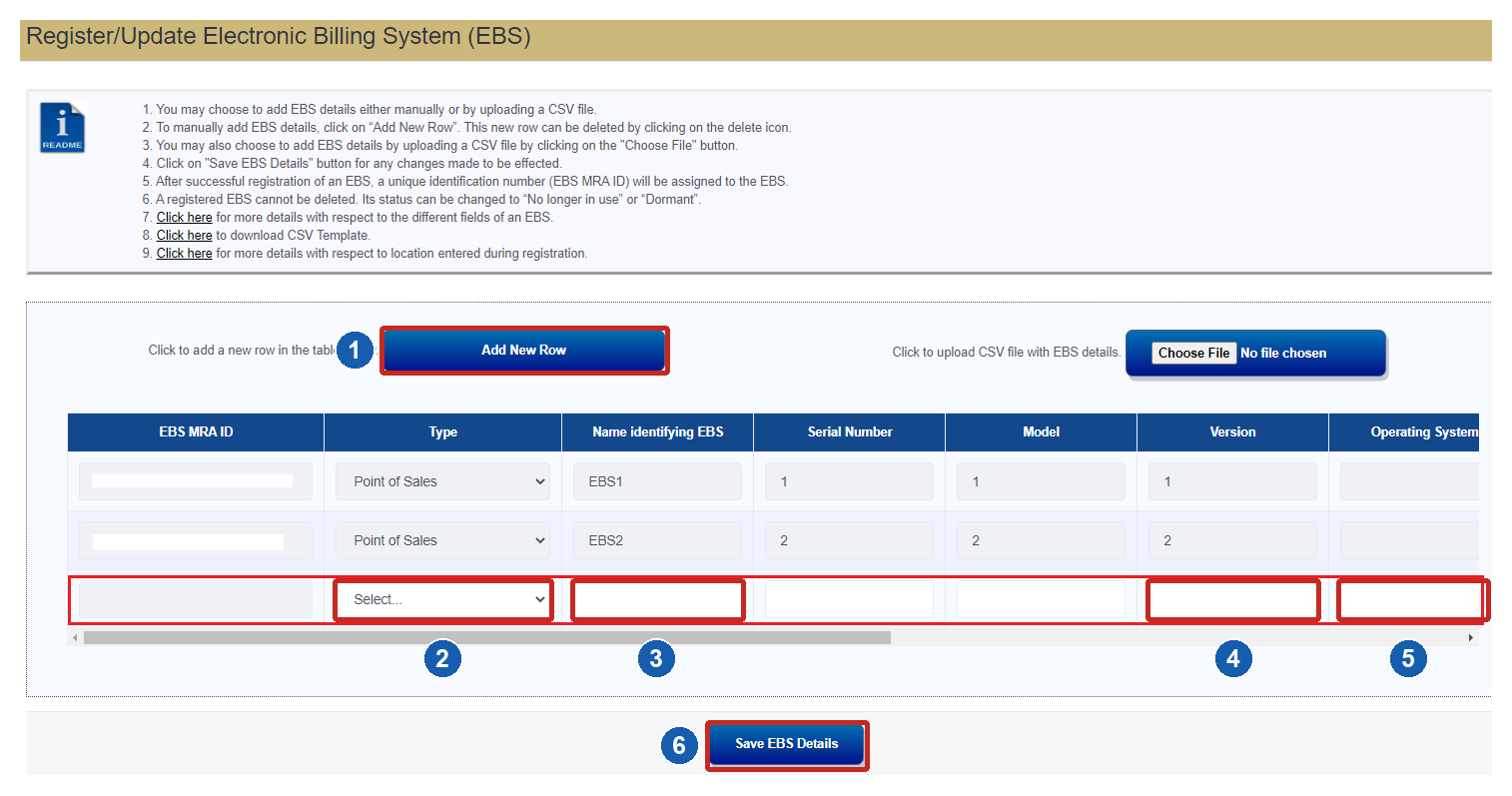
- 1Add New Row
- 2Type: Invoicing Software
- 3Name identifying EBS: EBS Mauritius Online
- 4Version: 1
- 5Operating System: SaaS
- 6Save EBS Details
MRA User Guidelines (2023), printed page 21. Fill the new blank row highlighted here. Scroll right for System, Status, Region and Branch Description; use the field table above. Select the image to enlarge it.
You have your own EBS MRA ID and its region.
Need a hand with this step?
The screenshot shows example records from the MRA manual. Fill your new row with the values in this guide, not EBS1 or EBS2 from the example. If your branch is missing, return to your MRA business information and save the branch there first.
Opens in another tab. Keep this guide open.
Link to this stepGUIDE STEP 9 / 14 In einv.mu · MRA access
Connect to MRA
Copy your company’s transmission details from the MRA portal into einv.mu.
- Enter the transmission username provided by MRA. Check any prefilled username against your actual MRA details.
- Enter the transmission password you set and securely noted during MRA registration. Copy it exactly. Do not change it when connecting einv.mu.
- Select the same region as your MRA registration and paste your EBS MRA ID. Save and continue.
| Field on the screen | What to enter or select |
|---|---|
| Transmission username | Copy the transmission username shown by MRA. Check the app’s prefilled value against it. Do not substitute your BRN + TEST login. |
| Transmission password | Paste the transmission password you saved in Your E-Invoicing Passwords. Keep it unchanged. |
| Region | Select the same region you chose when registering this EBS with MRA. |
| EBS MRA ID | Paste the complete ID generated after Save EBS Details, without spaces. |
Do not change the MRA transmission password.
Your transmission access, region and EBS MRA ID are saved in einv.mu.
Need a hand with this step?
Use the transmission credentials. Your einv.mu password, MRA e-Services password and OTP serve different purposes. Never send passwords or OTPs by support email.
Opens in another tab. Keep this guide open.
Link to this stepGUIDE STEP 10 / 14 In einv.mu · Checks
Run the checks
Let einv.mu carry out the seven checks for your company.
- If MRA asks you to select a testing mode for your EBS, follow the instructions shown in your operator portal before starting.
- In einv.mu, choose Run checks. Keep the page open while the checks run.
- Continue when the application shows 7 / 7 successful. If a check is unsuccessful, review your access details and follow the displayed message before retrying.
All seven checks show successful.
Need a hand with this step?
A successful check is shown as successful. You do not need to prepare technical test documents or understand individual test scenarios.
Opens in another tab. Keep this guide open.
Link to this stepGUIDE STEP 11 / 14 On MRA, then back to einv.mu
Confirm in MRA
Finish the portal confirmation after your seven checks have passed.
- Return to your company’s EBS in the MRA portal. Refresh the results if necessary.
- When all required results are successful, choose the confirmation action. Read and confirm the statement shown by MRA, then complete the activation steps it requests.
- Return to einv.mu. Confirm that you have completed the MRA portal step, then continue.
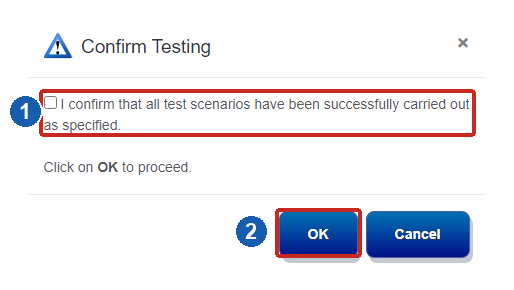
- 1Read and select the confirmation
- 2Choose OK to confirm
MRA User Guidelines (2023), printed page 34. Example confirmation dialog from the supplied manual. Select the image to enlarge it.
MRA confirms the required testing and activation, and you have recorded this in einv.mu.
Need a hand with this step?
Moving through this guide does not activate your business. Complete the actual MRA and application steps.
Opens in another tab. Keep this guide open.
Link to this stepGUIDE STEP 12 / 14 In einv.mu · Documents
Your documents
Prepare the appearance of your invoices.
- Upload your company logo and check its size in the preview.
- Complete the logo, colour and payment fields using the table below.
- Review the document preview, then save. Invoice numbers are assigned automatically.
| Field on the screen | What to enter or select |
|---|---|
| Company logo | Upload your company logo as PNG, JPEG or WebP, up to 4 MB. |
| Logo size | Move the slider until the logo looks right in the preview. |
| Document colour | Choose the colour you want on your invoices. |
| Payment instructions | Enter the bank, account and payment reference you want customers to use. These details appear on your documents. |
Your document appearance is saved.
Need a hand with this step?
You can adjust branding in the application. Keep the company’s legal information accurate.
Opens in another tab. Keep this guide open.
Link to this stepGUIDE STEP 13 / 14 In einv.mu · Pricing and payment
Your subscription
Review your subscription before paying.
- Choose the billing period available in the application. The monthly plan is Rs 850 per company, VAT included.
- Check the amount due, billing period and renewal terms. Continue to payment only when these are correct.
- Complete payment on the secure MCB page when available, then return to einv.mu and wait for confirmation.
The application confirms your payment.
Need a hand with this step?
If your card has already been charged, use Check my payment before trying again. If payment is not yet available, your setup remains saved.
Opens in another tab. Keep this guide open.
Link to this stepGUIDE STEP 14 / 14 In einv.mu · Activation
Your first invoice
Finish activation, then create your first invoice.
- Review your company summary and choose the button to start invoicing.
- Add a customer, then create an invoice. Enter the items, quantities, prices and applicable VAT.
- Check the details and send the invoice to MRA. After success, download the PDF with its MRA QR code.
Your business is active and your first successful invoice is ready to download.
Need a hand with this step?
For MRA registration or OTP issues: +230 207 6020. For an einv.mu technical problem: [email protected].
Opens in another tab. Keep this guide open.
Link to this stepThe right help when you need it.
MRA registration, access or OTP: +230 207 6020 · [email protected]
einv.mu technical problems only: [email protected]
Guide reviewed 20 October 2026. MRA screenshots are references; follow the instructions shown in your current operator portal. This guide does not collect credentials or confirm completion of app or MRA actions.